Home Products Services About Us Contact
← All Products

ChoreQuest turns household chores into a game kids actually want to play.

Parents assign quests, kids earn XP, everyone sees progress in real time — and rewards actually mean something.

● Real-world tested with real families ● Built by JafVenture, end-to-end
See it in action

A quick tour of ChoreQuest

Real screens from the live app — no mockups, this is what families actually use.
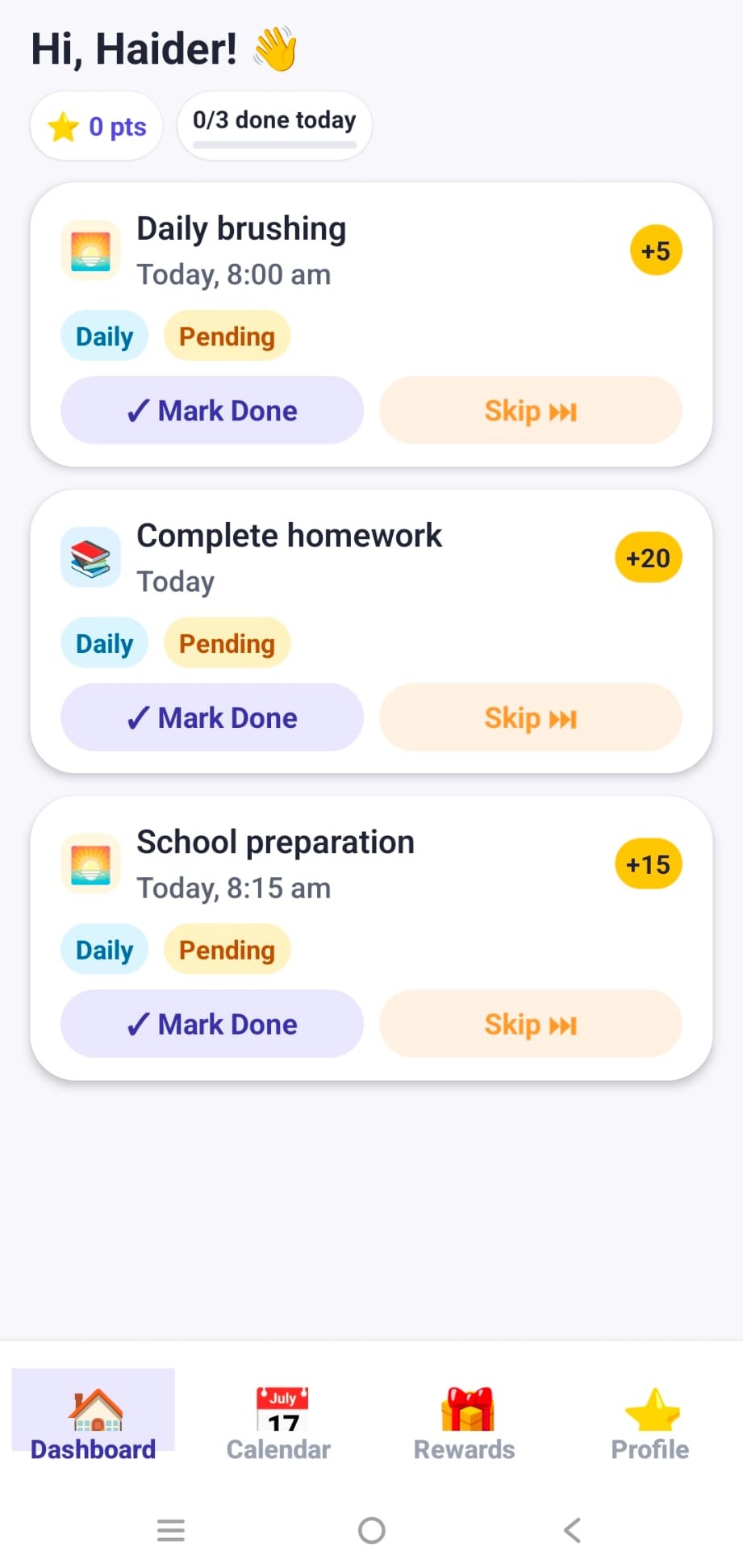
Kid's dashboard with today's chores and XP
Kid's Dashboard
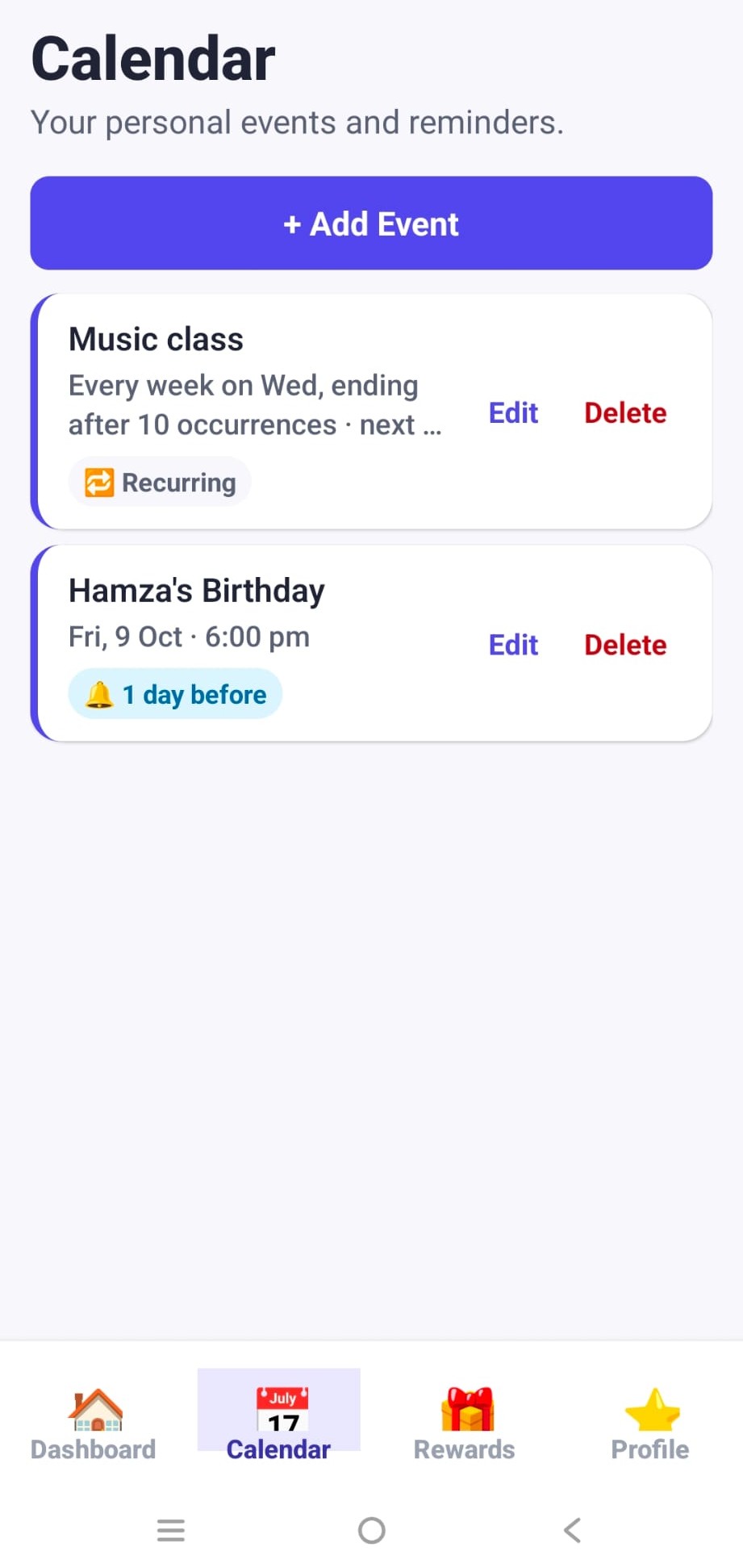
Calendar with recurring and one-off family events
Calendar
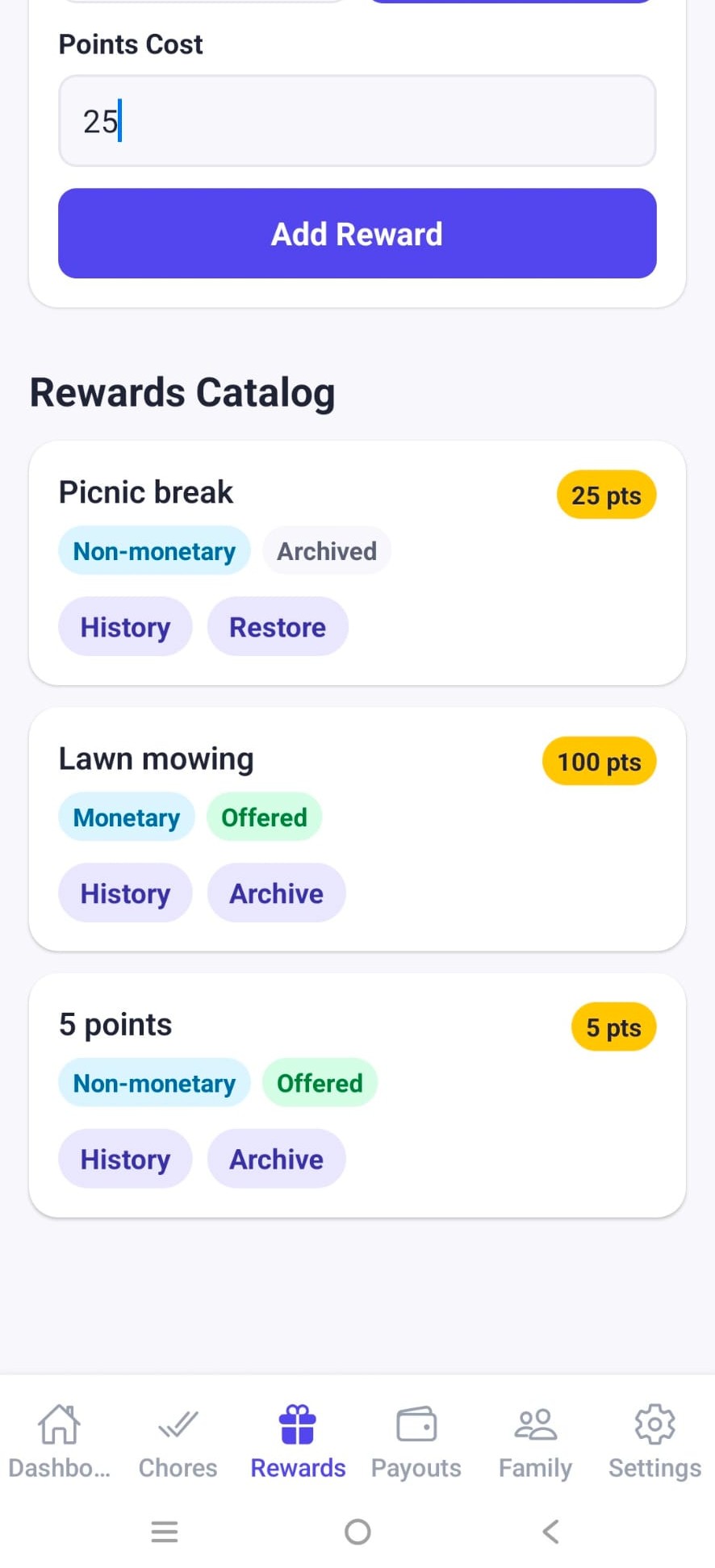
Rewards catalog with points cost
Rewards Catalog
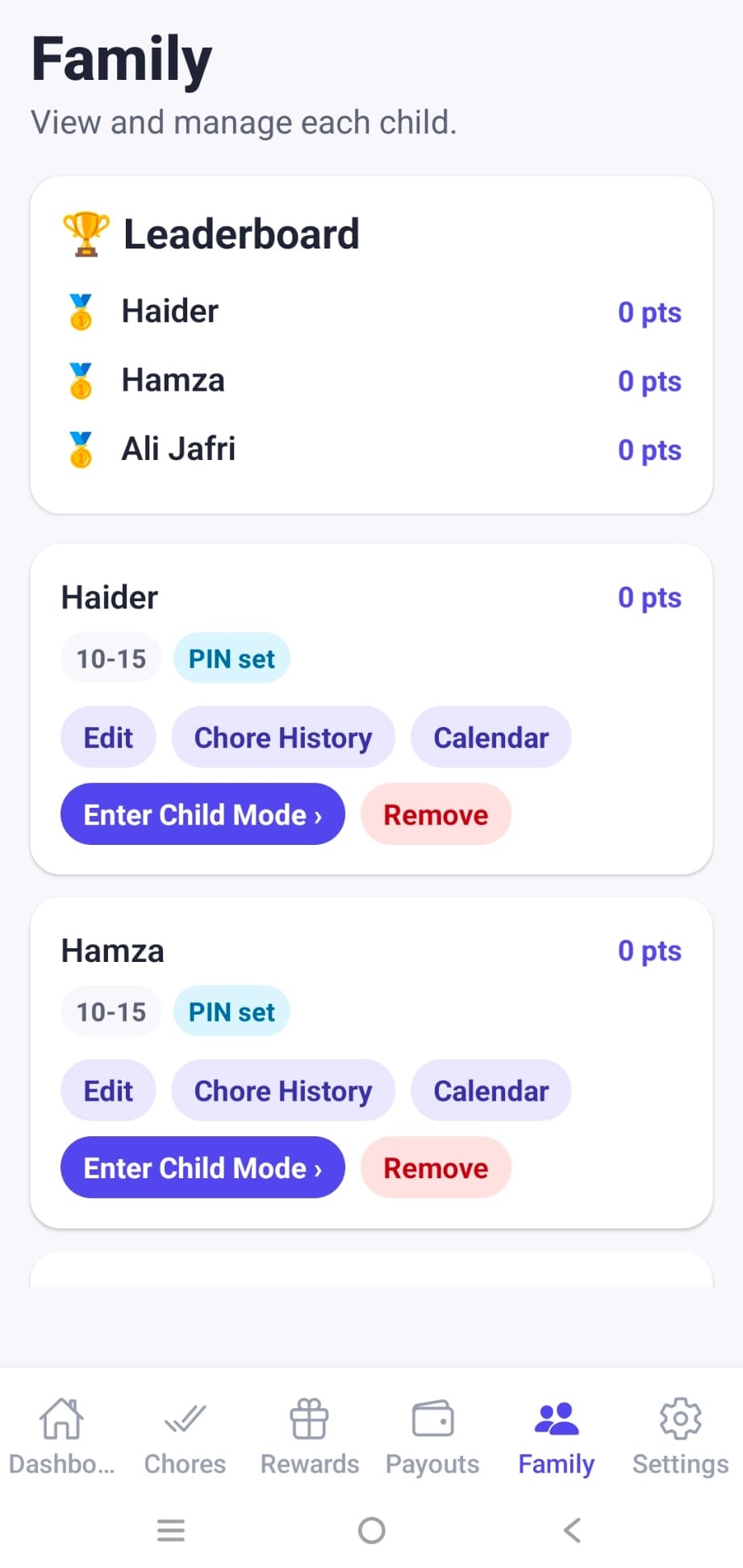
Family leaderboard and per-child management
Family & Leaderboard
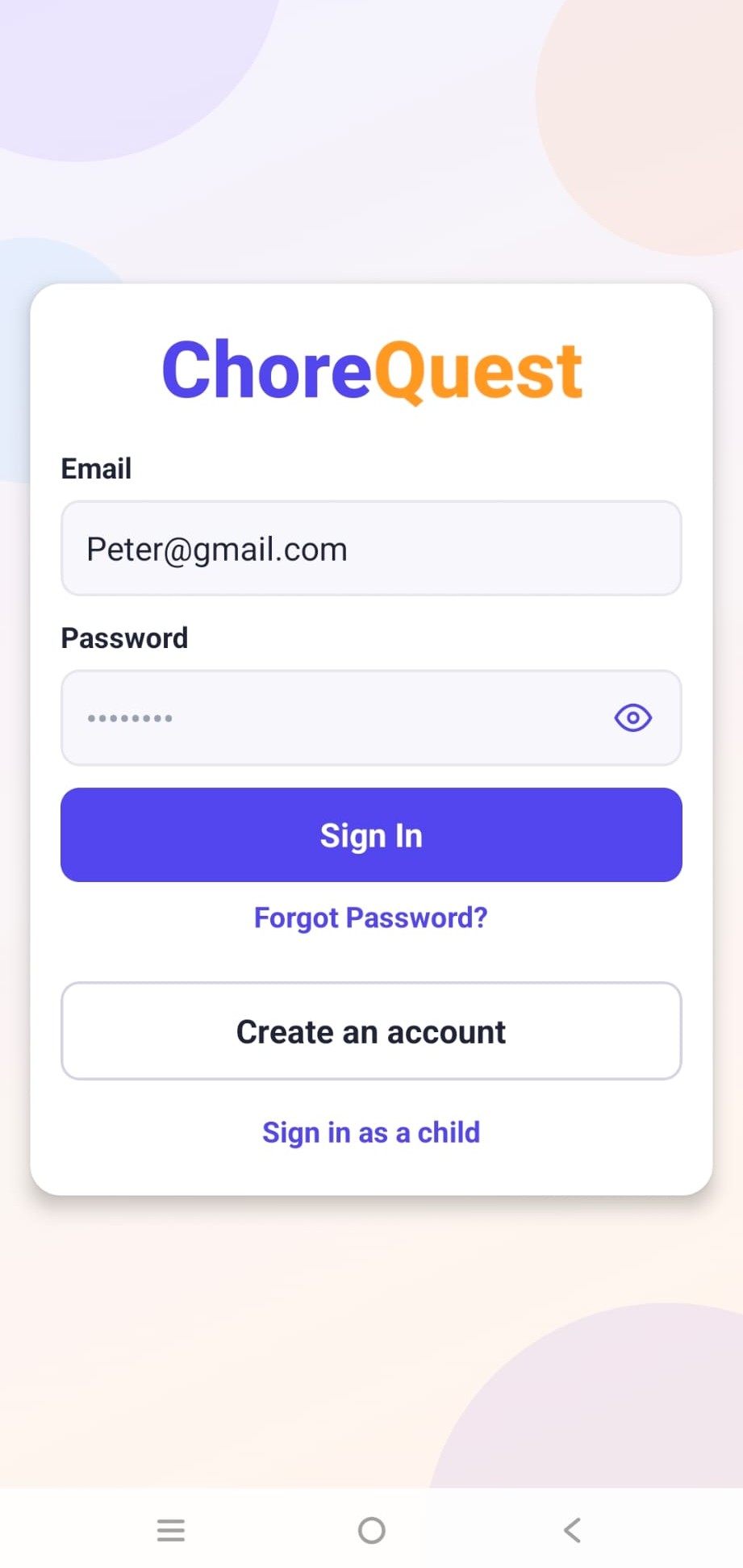
ChoreQuest sign in screen
Sign In
Why it works

Built for real families, not demos

Three things ChoreQuest gets right that most chore apps don't.

01

Assign & track chores

Parents set quests, kids complete them, everyone sees progress in real time — daily, recurring, or one-off.

02

Reward system built in

XP and a real rewards catalog turn routine tasks into something worth doing — from screen time to a picnic.

03

Built for real families

Multiple kids, a leaderboard, PIN-protected child mode — designed, tested, and shipped as a real product.

User Guide

How ChoreQuest works

Four steps from setup to reward.

1

Set up your family

Add each child, set a PIN, and you're ready to go.

2

Assign quests

Daily, recurring, or one-off chores — each with its own XP value.

3

Kids complete & earn

Kids mark chores done in Child Mode and watch their points grow.

4

Redeem rewards

Points unlock rewards from a catalog parents control.

Getting Started

Everything you need to use ChoreQuest

A quick walkthrough of setup and everyday use, for parents and kids alike.

01Creating your family account
  • Open ChoreQuest and tap "Sign Up" to create a new family account.
  • Enter your email and choose a password.
  • Your family's data is completely private — only your own children, chores, and rewards ever appear on your account.
02Adding children & assigning chores
  • From your Dashboard, use "Add Child" to add each child by name and age group, with an optional 4-digit PIN for independent sign-in.
  • Head to the Chores tab to create tasks — give each one a title and a points value, then assign it to a specific child.
  • Use built-in templates for common chores, or create your own from scratch.
03Approving chores & tracking points
  • When a child marks a chore done, it lands in your Pending Approvals list with their name, the chore, and the points at stake.
  • Tap Approve to add the points to their balance, or Reject if it wasn't completed.
  • Each child's points balance updates automatically and stays visible to both of you.
04Redeeming rewards
  • Build a rewards catalog with a name, a points cost, and a type — non-monetary (like extra screen time) or monetary (like an allowance).
  • Kids browse the family's reward catalog and redeem anything they can afford — points are deducted instantly.
05Signing in on a child's own device
  • Kids can sign in independently on their own phone or tablet — no parent login required.
  • They enter the parent's email, pick their name from the family list, and enter their own PIN.
  • Each child only ever sees their own chores, points, and history — never their siblings'.